
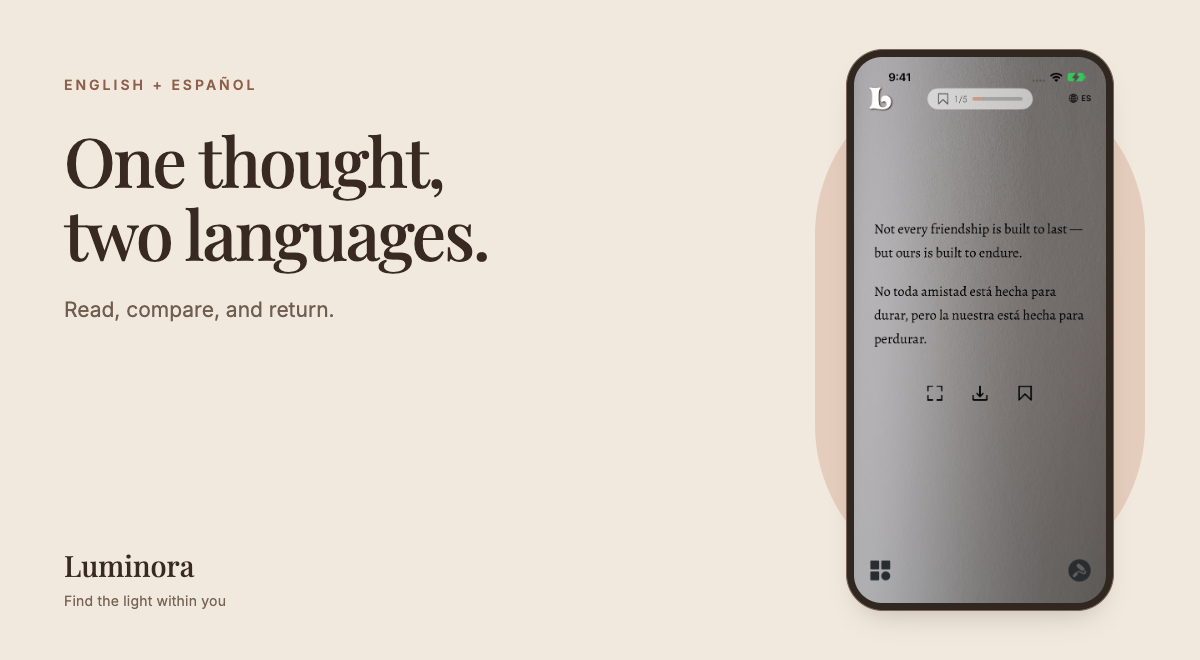
Luminora lets you read a passage in English and Spanish on the same iPhone reading card when a Spanish translation is available. In LEARN, open the globe control, select Español, and keep the same card in view to compare the wording. This reading-language control is separate from the app’s interface language. The official release history describes English–Spanish reading and the multilingual LEARN switch. [store]
The same control offers six reading languages: English, Spanish, Simplified Chinese, Traditional Chinese, Japanese and Korean. This guide uses Spanish; the steps are the same for the others. See one quote in all six languages.
Try the short routine below to pay closer attention to one passage and its translation.
Find the language control in LEARN
Open a reading card in LEARN. Look for the globe and language code near the upper right. Keep the same card on screen while you compare the languages, so you are comparing two versions of one thought rather than two different quotations.
When the app interface is in English, the globe opens a language menu. Choose Español to display Spanish alongside the English passage when that translation is available. Choose English again to return to the English-only reading view. If the app interface is Spanish, the language control switches directly between Spanish and English.
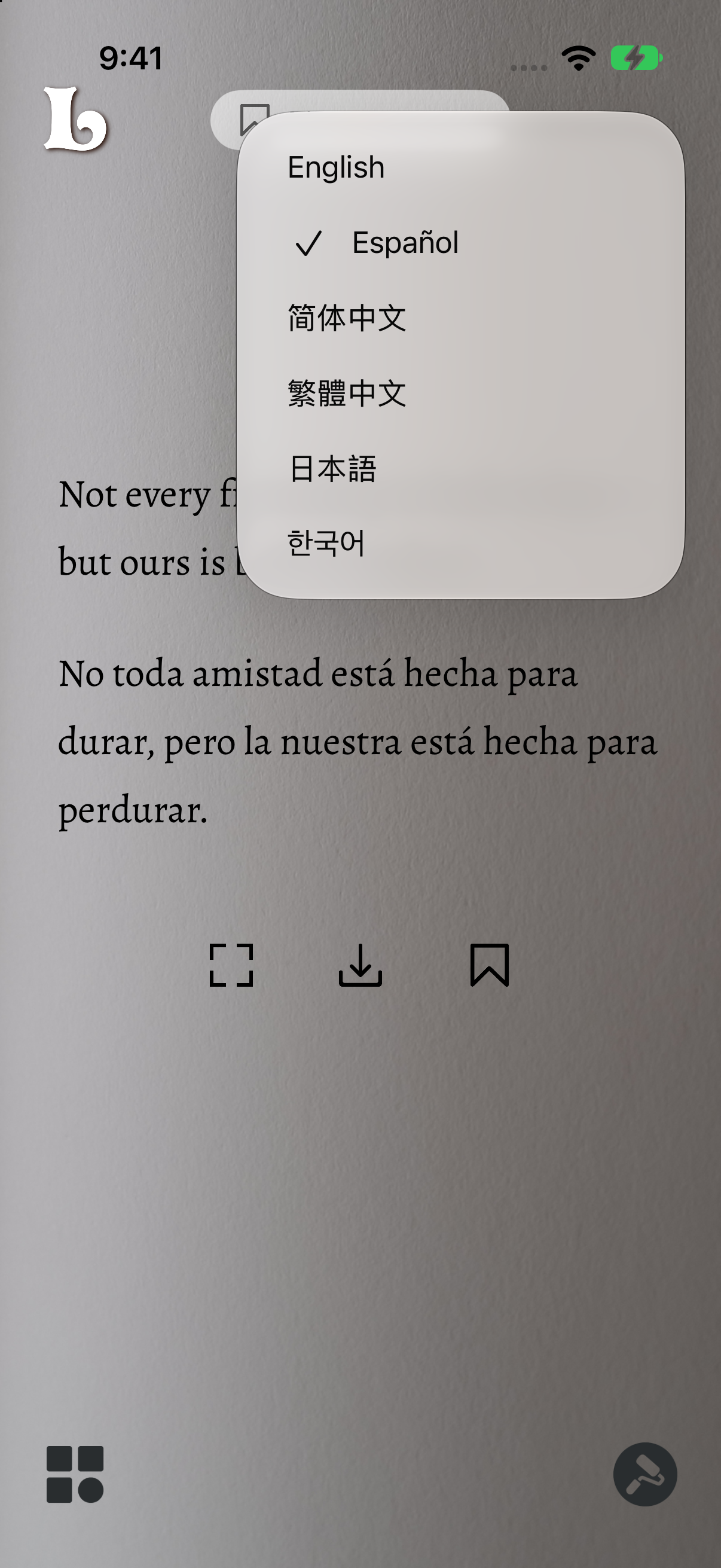
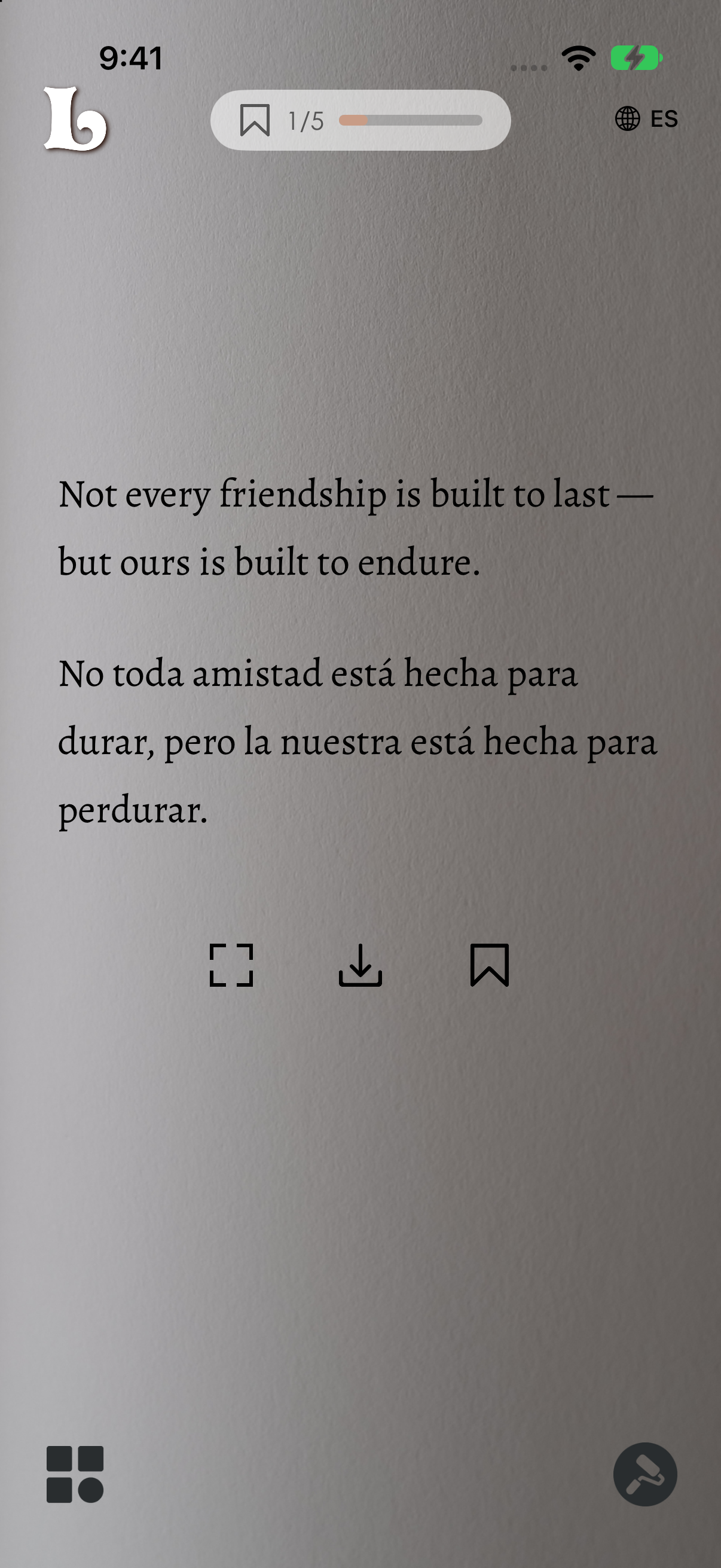
Changing the reading language is different from changing the whole app interface. The app’s profile settings contain a separate Language choice. If you use another interface language and do not see Spanish in LEARN, check that setting rather than assuming the translation control is broken.
A five-minute routine to try
- First minute: read the English. Choose a short passage you broadly understand. Say its meaning in your own words before looking for an exact translation.
- Second minute: bring in Spanish. Use the globe control. Read the full Spanish sentence once before focusing on individual words.
- Third minute: compare one expression. Look at a verb, a phrase, or the order of ideas. Ask what stayed the same and what the Spanish wording handles differently.
- Fourth minute: write a small note. Record one expression you want to remember in your own notebook. If you are unsure about a word, check a dictionary in context.
- Fifth minute: save and stop. Bookmark the card if you want to return to it. One useful observation is enough.
The five-minute division is only a suggested pace. Spend longer on a sentence that interests you, or stop after a single comparison. There is no required streak or number of words in this routine.
Compare meaning rather than counting matching words
Here is an original example written by the Luminora Team, separate from the app’s quote library: “I can begin with one small step.” One Spanish version is “Puedo empezar con un pequeño paso.” The English “I” is explicit; the Spanish verb “puedo” already expresses the first-person meaning, so this version omits “yo.”
That is a concrete feature to notice. It is more useful than treating every missing or additional word as an error. Another translator could choose a different natural phrasing.
Save the passage, then return to it
Use the bookmark icon under a LEARN reading card. To find saved reading again, open the collection selector and choose Favourites. On a later visit, read the English first and see whether you remember the meaning of the Spanish expression before bringing the Spanish text back into view.
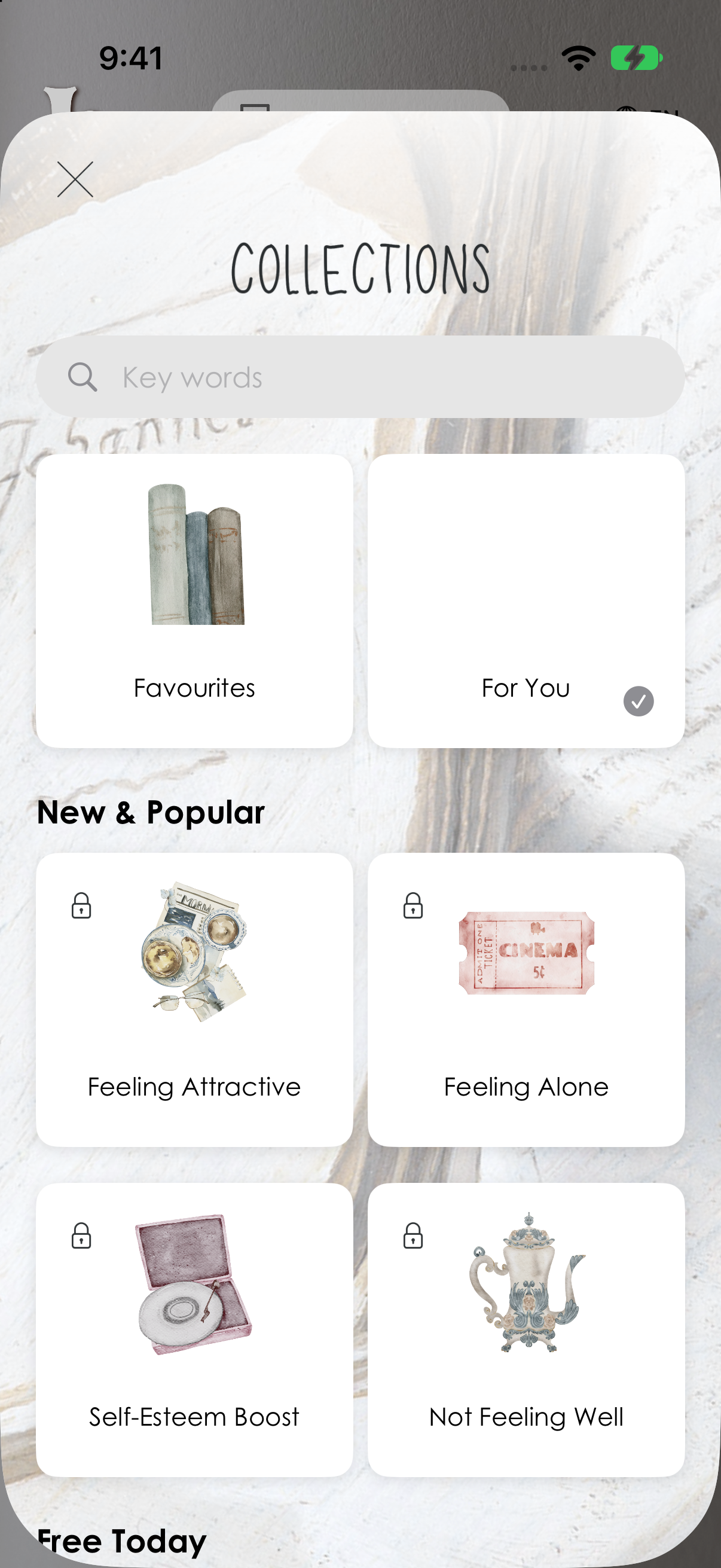
You can also revisit a passage because you enjoy it. Remembering an expression and enjoying a piece of writing are different aims, and neither requires turning every reading session into a test.
Read the story behind the line in Spanish too
On a literary quote, the Context button opens the source of the line, a short note on what was happening when it was said, and a brief biography of the author. With Spanish selected, that text appears in Spanish as well. It gives you a short passage about something you have just understood, in the language you are practising, with the English one tap away. See a real example of Context.
The translations and background notes are prepared with AI assistance. Use them as reading practice, not as a published translation.
What if Spanish does not appear?
Check that the current language selection is Spanish and allow the card to load. If a translation is unavailable, the card keeps its English text. Try another card to find a passage available in both languages.
For a literary quotation, distinguish the app’s translation from the writer’s original language and from a published translator’s version. Before citing a line academically or calling a translation definitive, find the original work and identify the translation you are using.
Choose the next passage by interest
Keep a small collection of lines you would want to read even without the language exercise. A theme you care about gives you a reason to return. If comparing languages makes a passage frustrating, choose a shorter one or read for meaning in your stronger language first.
To try this routine, use the App Store link below and open LEARN. Luminora is free to download with in-app purchases; check the current access and offers in the app. If you prefer to start with a question, follow the SEEK guide. To keep a line nearby, see the iPhone widget guide. Find the light within you.