Read a quote in two languages at once
In Luminora, a quote keeps its original wording and a translation appears beneath it. You can read in English, Spanish, Japanese, Korean, Simplified Chinese or Traditional Chinese, and the story behind the quote is translated with it.
One quote, six languages
This is a line from Nathaniel Hawthorne’s The Scarlet Letter, as Luminora showed it in each language on the day this page was written.
| Language | In the app | The quote |
|---|---|---|
| English (original) | EN | We dream in our waking moments, and walk in our sleep. |
| Spanish | ES | Soñamos en nuestros momentos de vigilia y caminamos dormidos. |
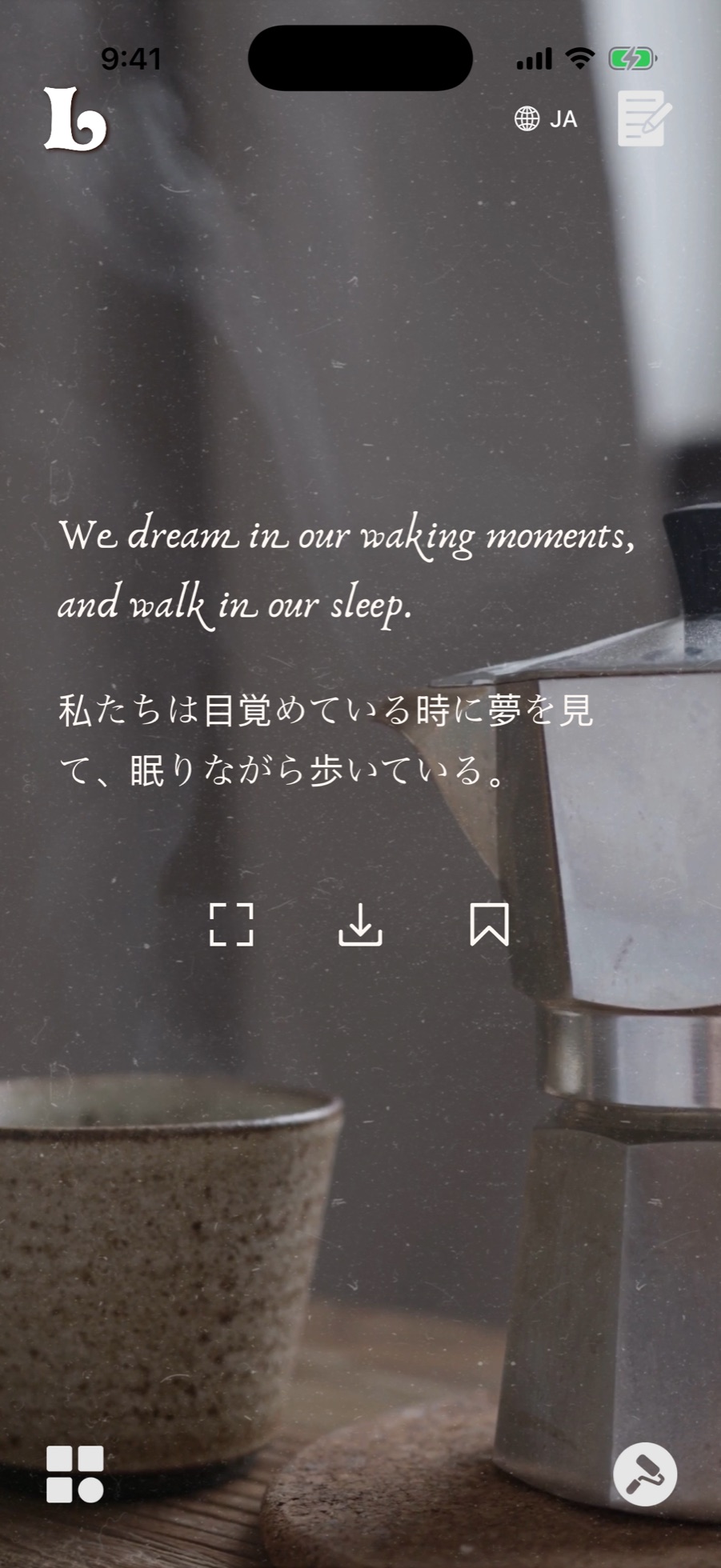
| Japanese | JA | 私たちは目覚めている時に夢を見て、眠りながら歩いている。 |
| Korean | KO | 우리는 깨어 있는 순간에 꿈을 꾸고, 잠든 채로 걸어 다닌다. |
| Simplified Chinese | CN | 我们醒时做梦,睡时行走。 |
| Traditional Chinese | TW | 我們在清醒時做夢,在睡夢中行走。 |
The two Chinese versions are separate translations, not the same sentence in different characters.
How it looks
The story is translated too
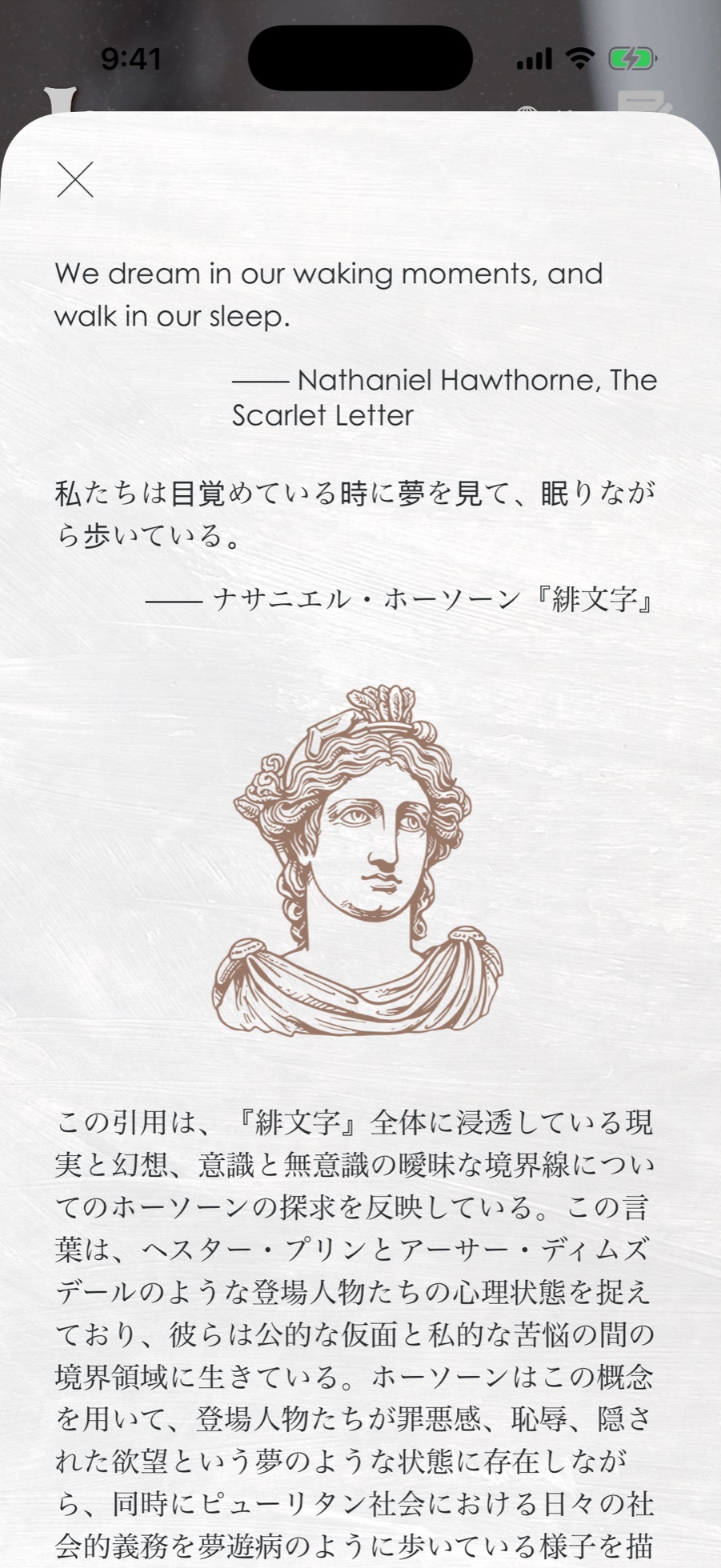
When you open Context on a literary quote, the attribution, the background note and the author’s biography appear in the language you chose. In the Japanese example above, the source reads ナサニエル・ホーソーン『緋文字』 and the note explains the line in Japanese.
For a learner this is the useful part: a short passage about something you have just understood, in the language you are learning, with the original one tap away.
A short routine for language learners
- Read today’s quote in the language you know best.
- Switch to the language you are learning and read the translation under the original. Notice which words carry the meaning.
- Open Context and read the background note in that language. Switch back whenever you lose the thread.
- Save the quotes you want to see again.
This is reading practice with real sentences. It is not a language course, and we do not claim it measures or guarantees progress.
What to know about the translations
The original quote is checked by a person before it is published: the wording and who said it. The translations, like the background notes, are prepared with AI assistance. A translated line can be freer or more literal than you expect, which is why the original always stays on screen beside it. If a translation looks wrong, write to hi@luminoradaily.com.
How to switch language
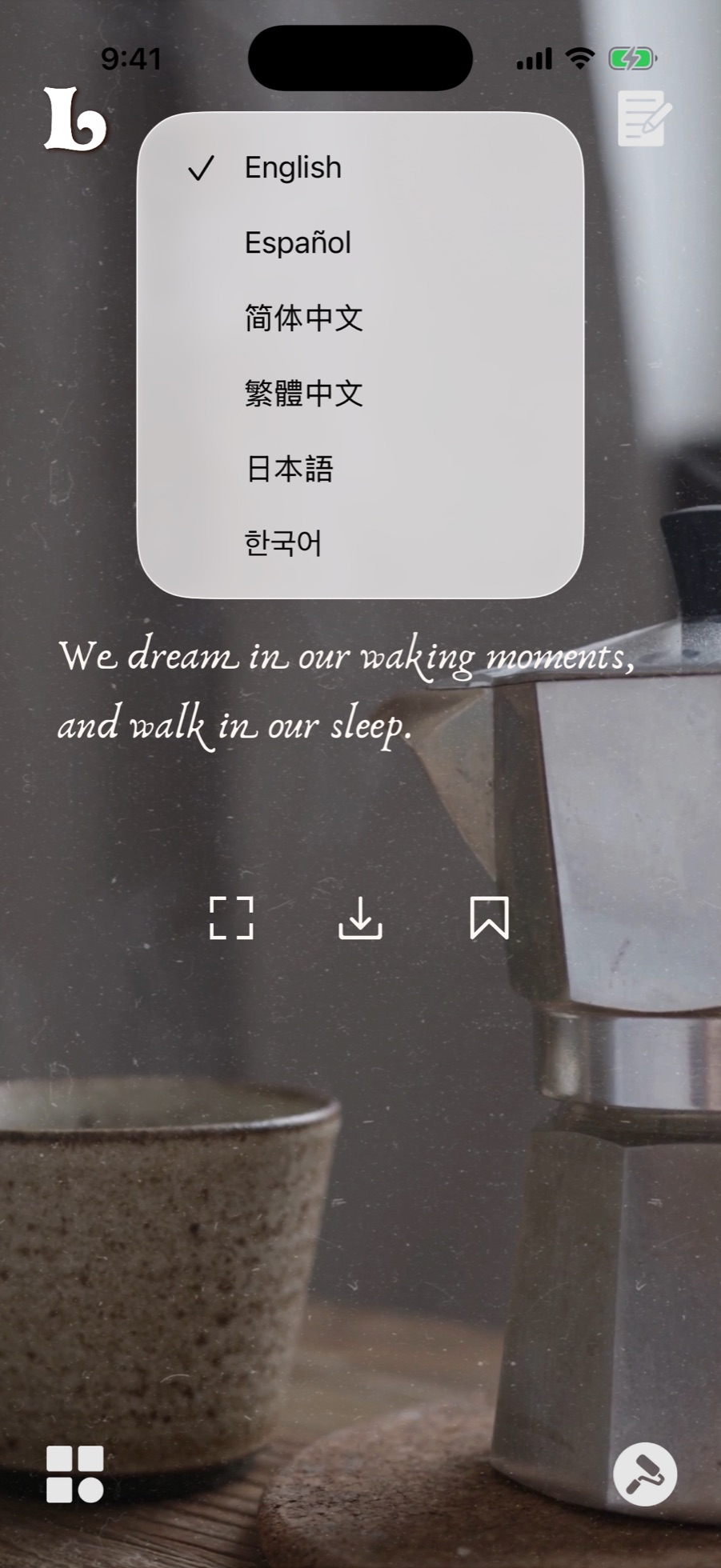
- Open LEARN.
- Tap the globe button at the top of the screen.
- Choose a language. The translation appears under the quote, and Context follows the same choice.
Luminora is free to download, and four LEARN collections are open to everyone each day. The language choice works on all of them.
View Luminora on the App Store