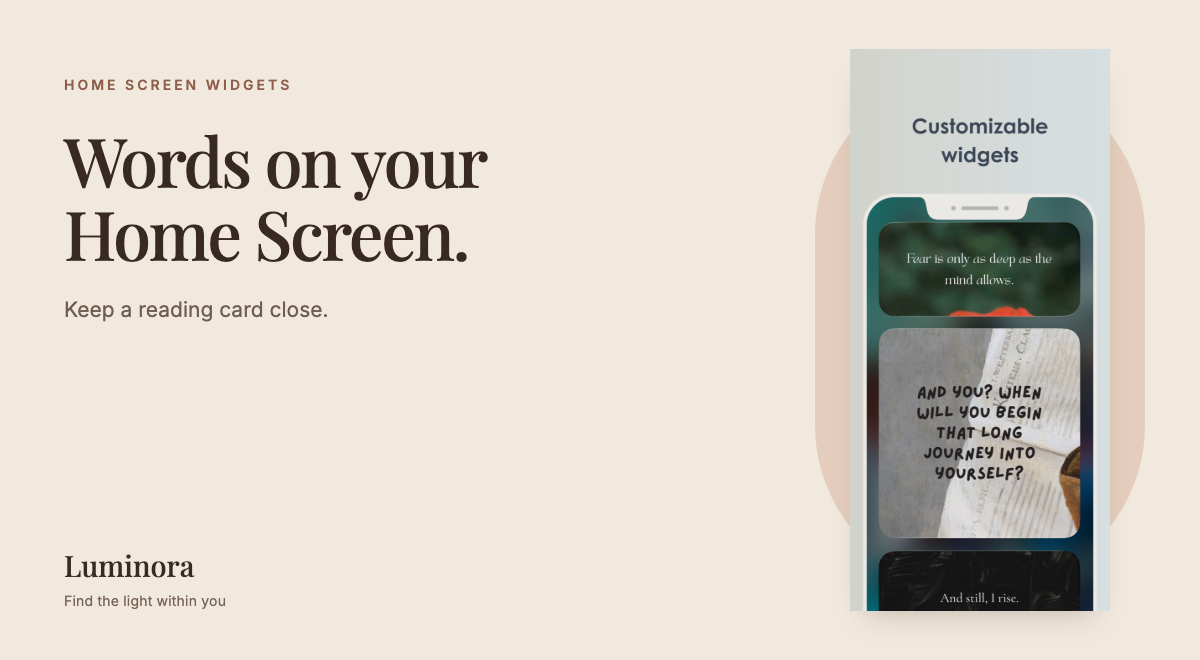

Add a Luminora quote widget through your iPhone’s Home Screen widget gallery. Then choose whether you want to keep a particular reading card nearby or show quotes from a widget style you configure in Luminora. The Home Screen placement and the app’s content settings are two separate steps.
Before you start
Install Luminora and open it to complete your initial setup. The US App Store listing checked on November 6, 2026 requires iOS 17.4 or later and describes Home Screen widgets. These steps are for the iPhone Home Screen. [store]
Make room on a Home Screen page for the widget. Luminora offers medium and large Home Screen layouts. Choose the size that gives your reading card enough room.
Add the widget to your Home Screen
- Return to the Home Screen, then touch and hold an empty area until the icons begin to move.
- Tap Edit, then Add Widget. On an older iOS layout, use the add (+) control.
- Search for Luminora and open its widget entry. The widget’s display title may be Daily Manifesting.
- Swipe through the available sizes. Choose the one that gives the words enough room, then tap Add Widget.
- Move it to the place you want, and tap Done.
These placement controls belong to iOS. Apple’s instructions also explain how to move or remove a widget later. [apple]
Choose one quote or a changing selection
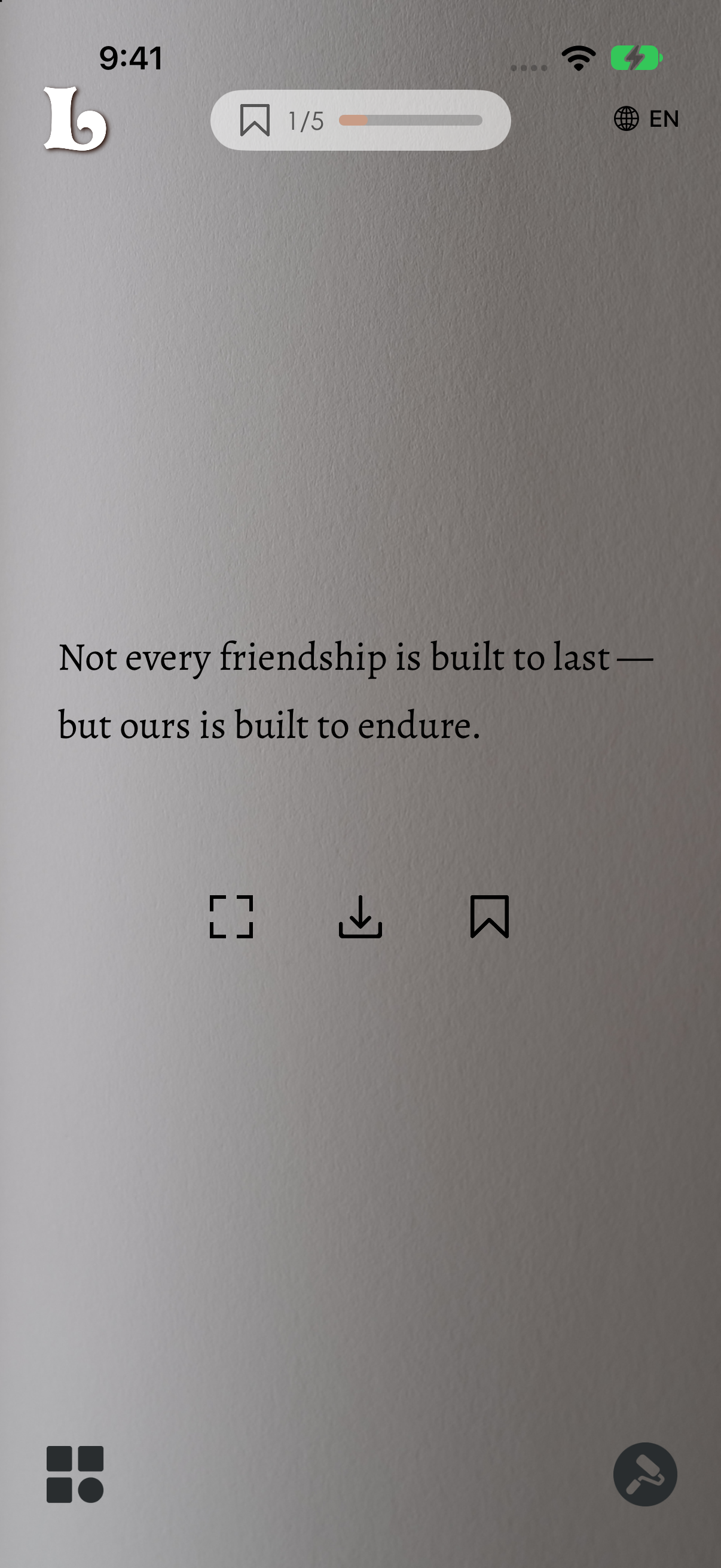
A fixed quote is useful when there is one line you want to revisit. In LEARN, find the reading card, then use the widget control beneath the text—the leftmost of the three action icons. This sends that card to the fixed widget configuration; it does not add a new widget to the Home Screen by itself.
For a changing selection, open Luminora’s profile settings and choose Widget. The configuration screen separates Refresh frequency, Collection, and Theme. Choose an available collection for the words and a theme for their appearance. Keep track of the style name, such as Widget 1.
Back on the Home Screen, touch and hold the Luminora widget and choose Edit Widget. Use Widget Style to select the configured style or the Fixed option when available. Tap outside the widget to finish. Apple documents the general editing gesture; the style names here belong to Luminora. [apple]
If the widget does not show what you expected
First check the style selected in Edit Widget. A fixed reading card and a collection style are different configurations, so changing a collection will not necessarily change the fixed card you chose. Open Luminora and confirm that the intended quote or collection loads before returning to the Home Screen.
If the gallery does not show Luminora, check that the app is installed and up to date, open it once, and reopen the widget gallery. If the app shows a connection error, resolve that error before treating a blank widget as a layout problem.
Treat Refresh frequency as a preference rather than a promise of a visible change at an exact second. If text looks crowded, try the larger supported layout or a shorter reading card.
Do I need Premium?
Luminora is free to download with in-app purchases. Its terms describe advanced widget themes among Premium features. Available themes, collections, and offers can vary with the account and current app version; check the selection screen and any purchase terms before subscribing. This tutorial does not require you to start a trial to learn the setup steps. [store] [terms]
Make the widget useful to you
Put the widget somewhere you naturally pause, rather than on a page you rarely open. Start with a single line or one collection. When the words stop feeling relevant, change the selection; a familiar line can give you a reason to pause and read.
For an overview of reading, saving, and asking a question, see What is Luminora? If you are still choosing an app, our Luminora vs Motivation comparison separates product features from reading preferences.
Find the light within you. Choose a few words you want to meet again.