

Choose the route you want to take through a quote
Luminora is worth trying when you want to start with a personal question, read a quote with a reflection, and return to saved words or available translations. Motivation is worth trying when you want topic-based quote discovery with detailed options for displaying and sharing what you find. That recommendation follows their official descriptions, not a scored usability test. [4] [3] [2]
We checked the US iPhone and iPad listings and official websites on November 6, 2026: Luminora 2.0.1 and Motivation 7.8.0. No device sessions, purchases, notification delivery tests, or side-by-side screenshots were performed. “Not confirmed” in the table is an open question, not a missing-feature verdict. [1] [3]
What each app tells you about a quote
Tap a quote in Motivation and you can share it or save it. The quote is the whole card. [3]
In Luminora, a literary quote in LEARN has a Context button. It opens the source of the line, a short note on what was happening and why it was said, and a brief biography of the author. A line you have seen many times can read differently once you know who said it and to whom. See a real example of Context. [16]
In LEARN, Context appears on literary quotes. Short reflections with no author have no Context.
Updated November 14, 2026. This one item was checked in both apps by the Luminora team. No other device sessions were performed, and the rest of this guide still rests on the listings and official websites described above.
1. Find: browse a topic or begin with a question
Motivation describes a library organized by topics, with category filtering and quote search among its Premium features. That is a useful starting point if you already know the area you want to read about, or want a passage to share. Its website also describes adjusting themes, widgets, and reminders. [3] [4]
Luminora’s documented route is different: enter a question in SEEK and receive a relevant quote with a reflection. LEARN also offers themed collections. You do not need to treat the reflection as a definitive answer; the useful question for your own evaluation is whether the connection gives you something you want to think about. We have not measured matching quality or established that Motivation lacks an equivalent question feature. [2]
For either library, keep authorship separate from interpretation. Before sharing a line as a historical quotation, look for its author, original work, and context. In Luminora, every SEEK answer includes Context on the other side of the card, with the author and a short biography. We did not audit the accuracy of either quote catalog. The presence of an author’s name alone would not establish accuracy.
2. Place: decide where and when you want to see it
Both document Home Screen widgets and reminders. Motivation’s help center goes further into widget choices, including Lock Screen content and a fortune-cookie Home Screen widget. These are useful documented options if a glance at your phone is your main reading habit. Luminora’s public information confirms Home Screen widgets; its Lock Screen support and equivalent widget types were not established in this review. [2] [10]
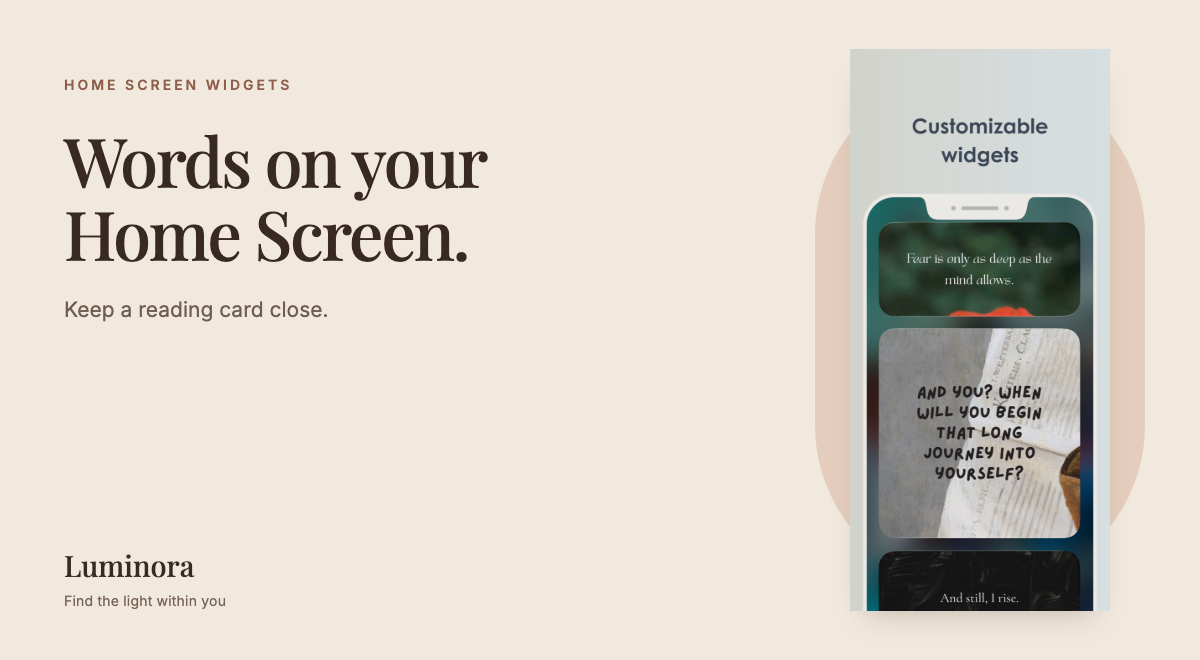

For Home Screen placement and the difference between a fixed card and a configured style, read our Luminora Widget setup guide.
Widget refresh and notifications are separate settings. Monkey Taps documents iOS Home Screen refresh choices such as hourly and daily, while reminders have controls for content, frequency, time, days, and sound. A listed interval does not prove that every update arrives exactly on time; we did not test background delivery. [11] [7]
There is also a precise paid feature worth checking: Monkey Taps says Premium users can pin chosen content to Home Screen widgets for 24 hours. Its help center explicitly says that pinning does not apply to Lock Screen widgets. That is confirmed non-support for one narrow task, not a claim that Motivation has no Lock Screen widget. We have not confirmed equivalent pinning in Luminora. [12] [13]
3. Keep: saving for yourself is different from sharing
Motivation documents favorites and sharing in its listing; its help center describes organizing saved content into collections. It also says removing the watermark from shared images requires Premium. If you want to send quote images to other people, check what the saved image actually includes before choosing a plan. [3] [6] [14]
Luminora documents saving favorite quotes and exploring collections in LEARN. That is a reason to investigate it as a personal reading library. The exact image-export controls and watermark options were not established here, so this comparison does not award it an advantage on sharing. [2]
4. Return: try retrieving one passage before subscribing
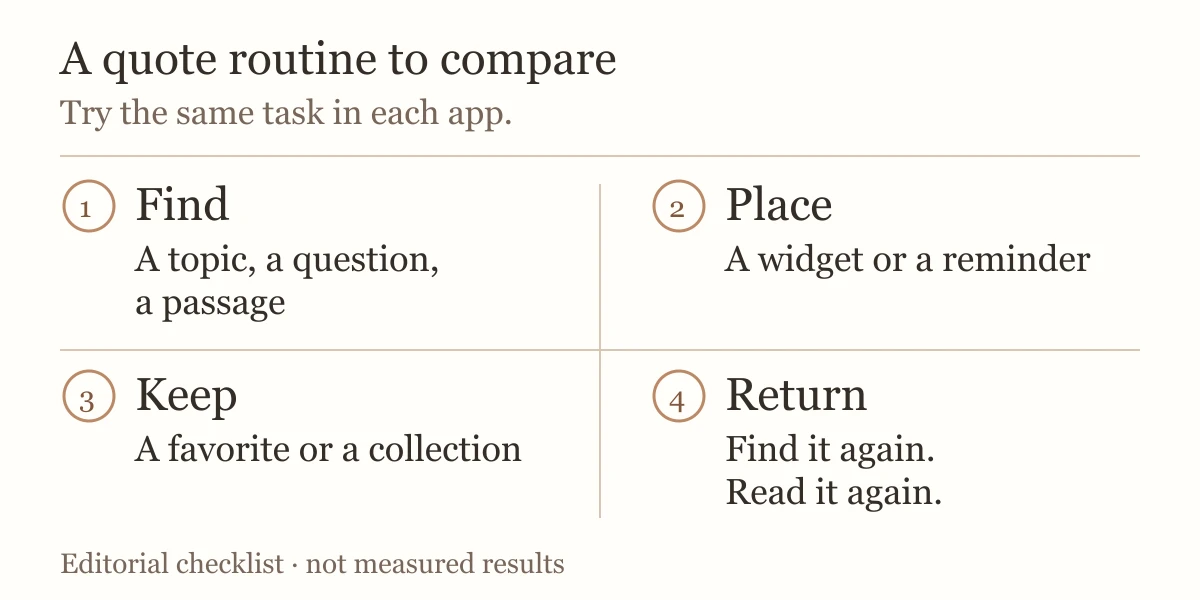
A long list of saved quotes is only useful if you want to return to it. Here is a small evaluation you can carry out in either app. This is an editorial checklist, not a report of our own test:
- Choose one real topic or question and find a line you want to revisit.
- Save it, close the app, and try finding it again. Note which actions are available without a subscription.
- If a widget matters, try the size and location you actually use. If reminders matter, check their controls separately.
- If you read in two languages, check the same passage rather than just the app’s language menu. Compare the meaning and confirm that the desired translation is available.
Both listings include English and Spanish. Luminora lists six app languages and documents bilingual reading, with translation availability varying by content. Motivation lists fourteen languages; its help center explains switching the app language. That does not establish side-by-side translation of the same quote, which remains unconfirmed here. [1] [3] [2] [15]
Free access and US purchase options
Both apps are free to download with in-app purchases. Luminora’s US listing on November 6, 2026 showed $4.99 Premium Monthly and $49.99 Premium Yearly. Motivation listed several Premium purchases, including $3.99, $14.99, and $47.99, but those displayed names did not identify their durations. We will not label those amounts monthly or yearly or use them for a cost ranking. Check the actual offer on your device. [1] [3]
Monkey Taps’ free-access guide lists the main feed, basic topics, favorites and collections, sharing, basic widgets, and basic reminders. Premium expands the topics, themes, widget options, and reminder options and removes ads. Luminora does not currently publish a complete free-task allowance; verify access to the SEEK, reading, and saving actions you want. Neither a listed price nor a free download tells you the full cost of your intended routine. [5] [2]
The current iPhone/iPad minimums are 17.4 for Luminora and 18.0 for Motivation. This comparison does not evaluate their other platforms. Review the Luminora privacy policy and Monkey Taps privacy policy for data questions; we have not performed a privacy audit. [1] [3]
Which would we suggest trying?
- For a particular question and a quotation to reflect on: explore Luminora’s SEEK, then see whether LEARN supports the way you want to revisit it.
- For topic discovery and quote-image sharing: start by exploring Motivation’s documented browsing and sharing controls.
- For a widget-first routine: compare the exact widget task. Motivation has more detailed public documentation in this review; documentation depth is not proof that another app lacks a feature.